Client portal for freelancers and small agencies.
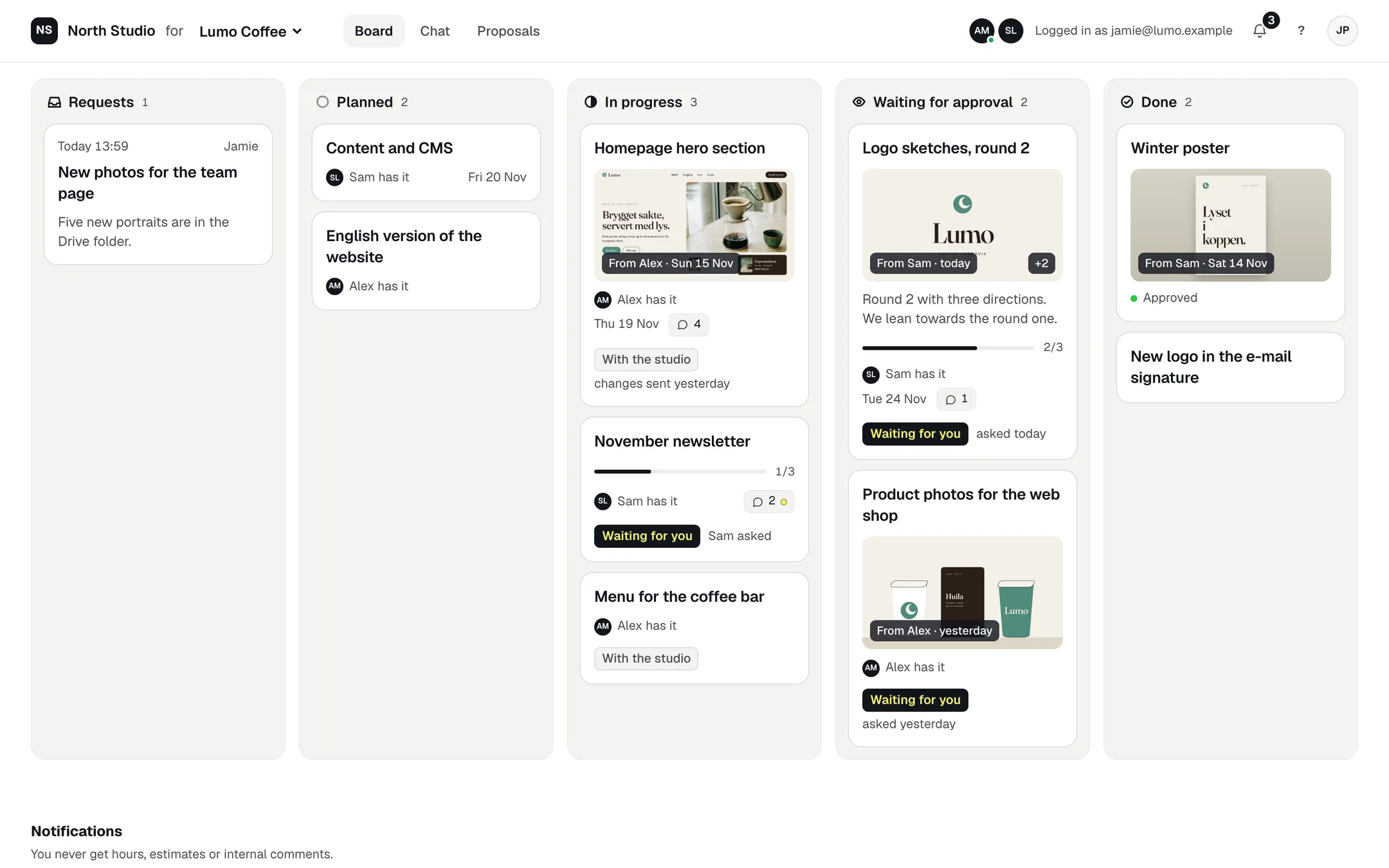
The client portal in PixelTask is a web page of its own for every client, made for freelancers and small agencies. Your client sees the cards that concern them, approves with one click, comments right on the file and sends new requests. No account, no password: they sign in with an e-mail code. Hours, estimates and internal comments stay hidden.
- Sign-in
- Code by e-mail
- Client needs
- Just a browser
- Client never sees
- Hours or estimates
- Data stored
- In the EU (Stockholm)
How does the client sign in?
Your client signs in with a six-digit code sent by e-mail. There is no account to create and no password to remember.
In the app you open «Client portal» on the client's board, add the people at the client under «Who has access» and send the invitation. The link in that e-mail signs them straight in the first time, and it only works for the address it was sent to. After that they type their e-mail and get a fresh code. The code lasts an hour, and the browser remembers them for 30 days.
The page works in any browser, on Windows and on phones too, so your client installs nothing. It follows the browser's language and comes in Norwegian and English. At the top sit your studio's logo and a cover image or the client's colour, so it is clear who the page is from.
The first time someone at the client signs in, the person who gave them access gets an e-mail.
What does the client see, and what stays hidden?
Your client sees only what you choose to show. Hours, prices, estimates and internal comments are never on their page.
For each project you choose whether the client sees nothing, only the cards you pick, or every card. An eye on each card handles the single card. The client sees the title, the description, the due date and who on your side has the card. Subtasks and files have their own eye, and files stay hidden until you switch it on. Comments are internal until you choose «Reply to client».
At the top of the page, «Waiting for you» gathers what you need an answer on, and a bell shows what is new. Chat, Proposals and Brand manual can appear too, and you decide per client what is included.
Clients can send new requests with «New task»: text, files, a requested date and «This is urgent». The request lands in To sort on your side and only reaches the board once you have sorted it.
- The cards you choose to show
- Files with the eye on
- Replies marked «Reply to client»
- Waiting for you
- Chat, proposals and brand manual
- Hours and estimates
- Prices
- Internal comments
- Hidden files
- Other clients
How does the client approve a card?
Your client clicks «Approve» on the card, and the card moves to Done on your side, marked «Approved». One click approves the whole card, including the files the client can see.
You start it. Open the card and choose «Ask the client for» under «Client». «Feedback» is a first look, and «Approval» is final. The client gets an e-mail, and the card waits under «Waiting for you» on their page.
If something is off, the client clicks «Request changes» and writes what should change. The card comes back to you, marked «Asked for changes» on the card and in the bell. When you only ask for feedback, the client answers «Looks good» or writes a comment, and the card shows «Seen».
Clicked too soon? The client can undo within 10 minutes. When a card with a due date is waiting for approval, the client gets one friendly reminder by e-mail three days before. Home shows what is waiting with your clients, and for how long.
Can the client comment right on the file?
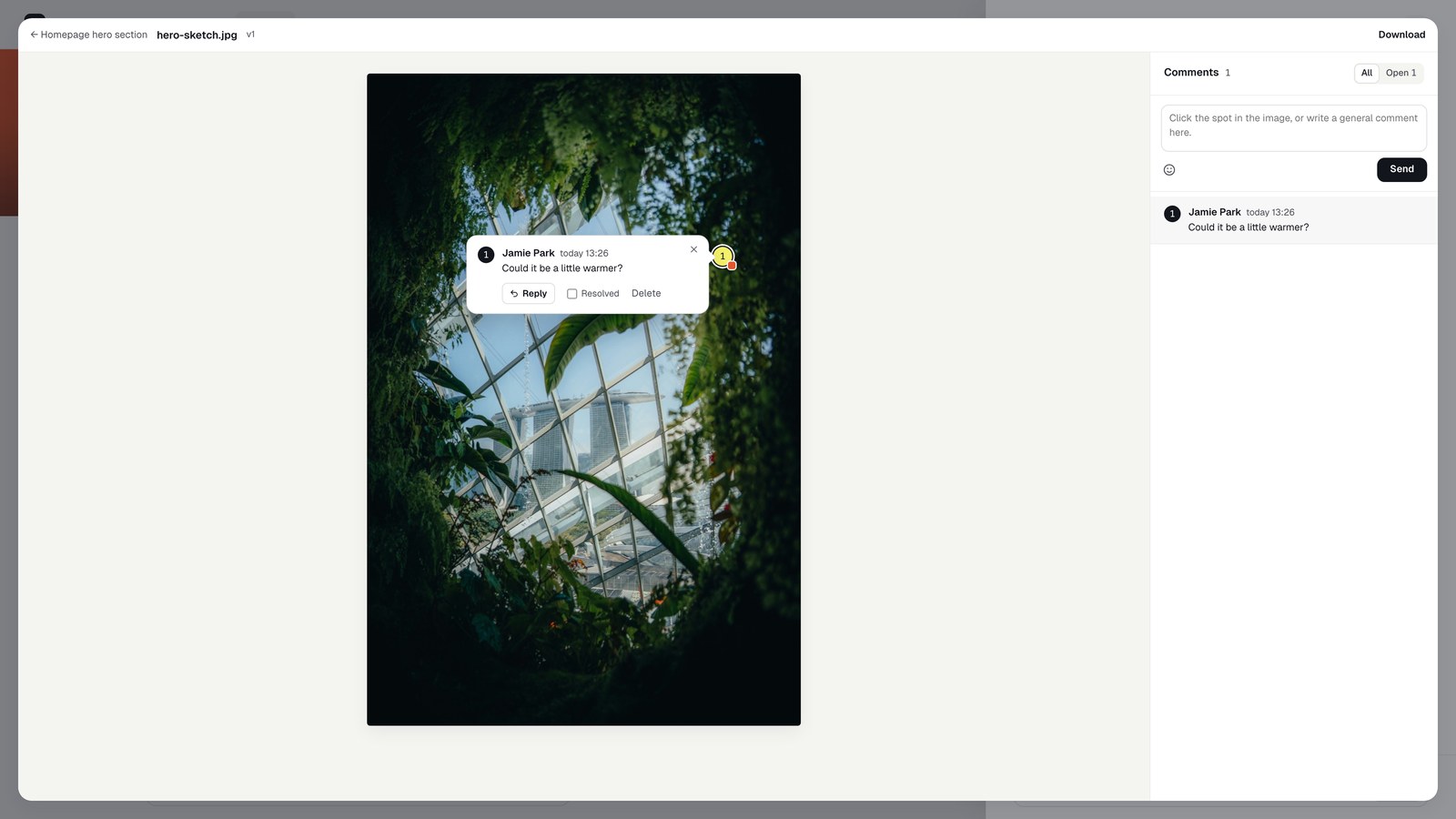
Yes. Your client clicks the spot on the image or the PDF page they want to talk about and writes the comment there. It gets a number on the file, and the conversation sits right beside it.
You see the same numbers on the card in the app and reply in the same thread. A reply can be marked internal so only your team sees it, and partners always write internally. When a thread is handled, you mark it «Resolved».
Upload a file with the same name, and PixelTask asks whether it is a new version. The client sees the newest version with the earlier ones beside it. Everyone knows which draft they are talking about, and the feedback stays where it belongs.
Comments can hold lists, bold text and emoji, and the client can react with an emoji. When a client writes on a card you own, you get a notification, even without an @.