Client notes with checklists that become cards
Notes in PixelTask are pages for meeting notes, ideas and routines, tied to a client or kept internal to the studio. They suit freelancers and smaller agencies who want notes where the work is. You write on Mac or phone, stay organised with #tags, and turn a checklist line into a card on the board in one click.
- Belongs to
- A client or internal
- Order
- #tags and pins
- Visibility
- Team or only you
- Checklists
- Become cards
What do I use Notes in PixelTask for?
Notes are for whatever isn't a card yet: meeting notes, ideas, routines and draft price lists. Each note is a page with a title, a date and text, and it belongs to a client or stays internal to the studio.
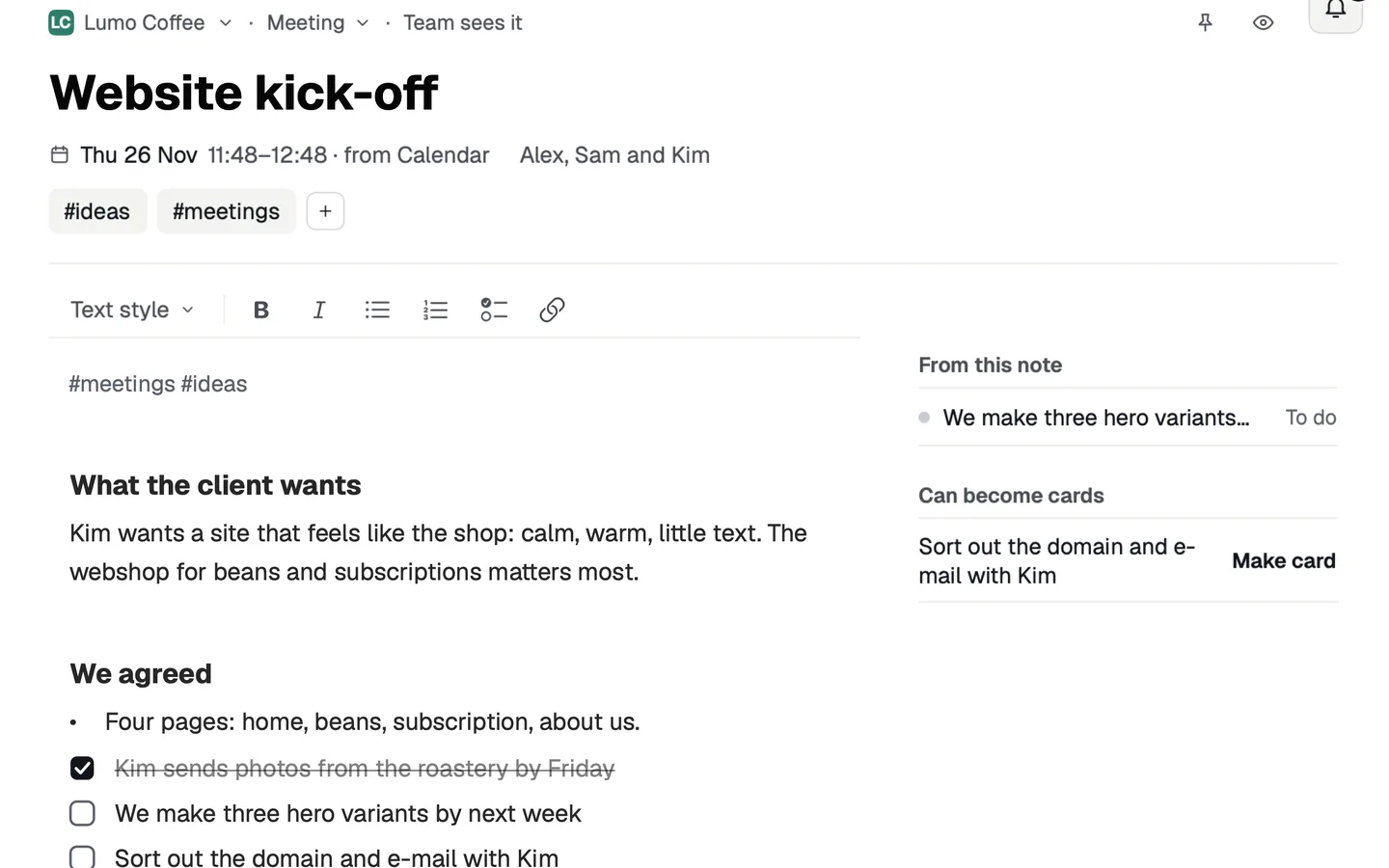
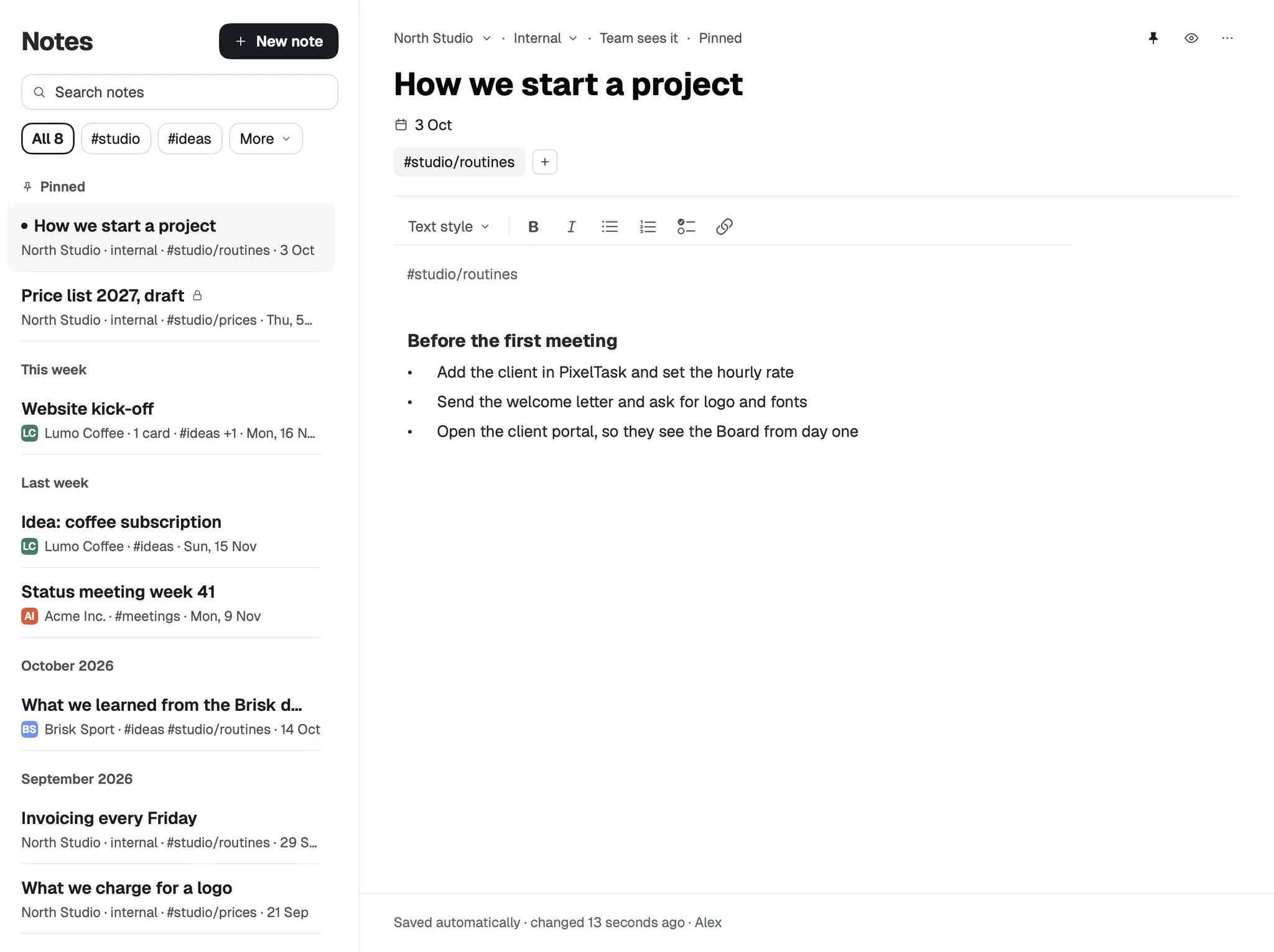
A note is a meeting, a plain note or internal. If the meeting is in your Calendar, «Make a note from the meeting» creates a note with the title, the time and who was invited. PixelTask suggests the client from the invitees' e-mail addresses.
You find your notes under Notes in the sidebar (⌘7), and on each client in the Notes tab next to the board. Press ⌥⌘N for a new note. The text has bold, lists, checklists and links, and a link to Figma or Google Drive shows with the service's icon.
Notes are on iPhone, iPad and Android too. «Export data» gives you every note as Markdown in a single ZIP.
How do I keep lots of notes in order?
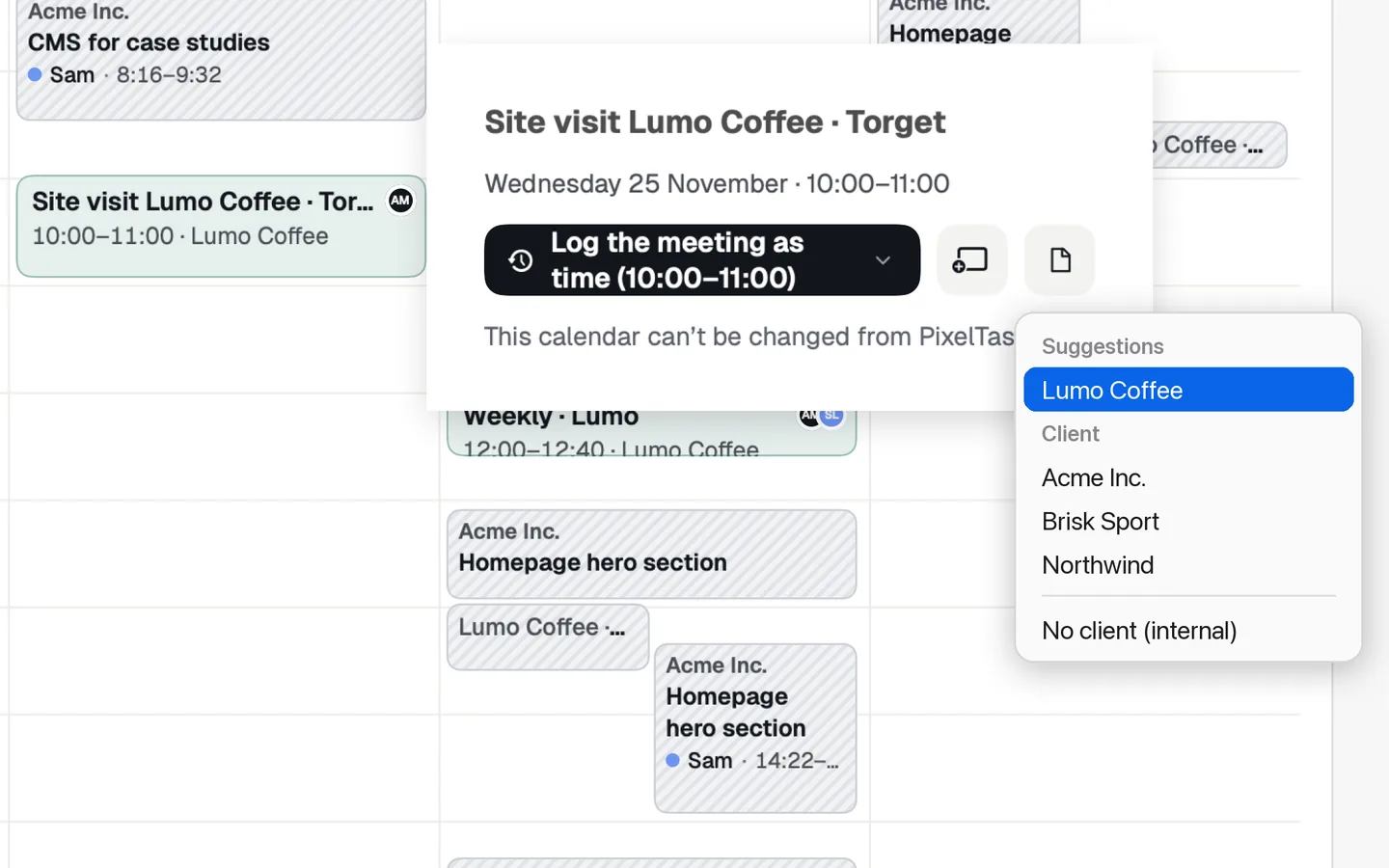
You type #tags right in the text, and the notes gather under Notes in the sidebar. There are no folders to tidy.
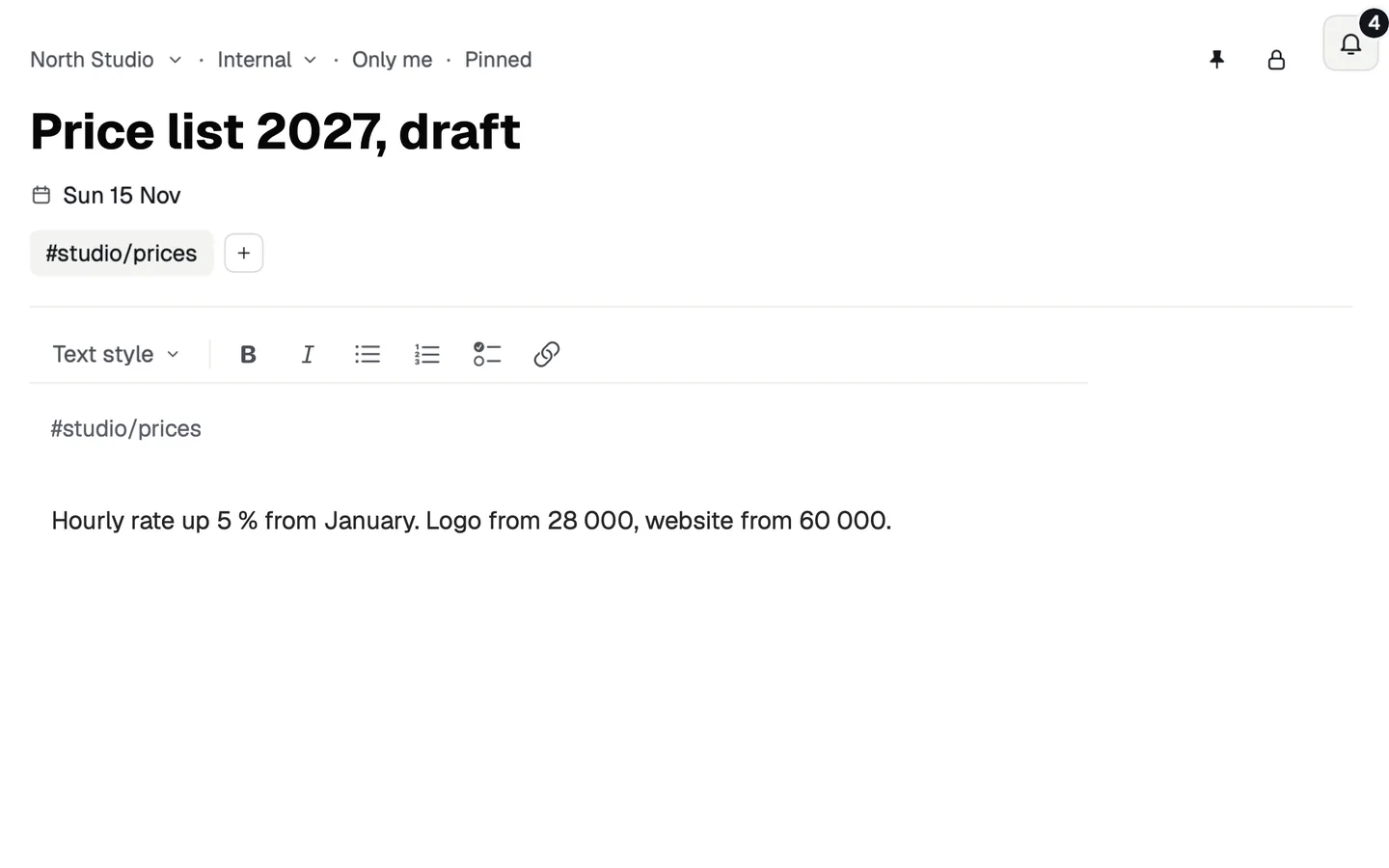
A tag is one word, like #studio or #meetings. Use / for levels, like #studio/prices. As you type, PixelTask suggests tags you have used before. If you'd rather keep the tag out of the text, give the note a category with + at the top, the same way you do on cards.
«Pin» puts a note at the top of the list for the whole team. Only you can pin an «Only me» note. The rest are ordered by date, with this week and last week first.
The list has search. You can filter by meetings, your own notes, internal notes or a single client, and sort by date or client. A deleted note stays in Archive under Recently deleted for 30 days, so you can bring it back.
Who can see my notes?
Your team sees your notes unless you turn on «Only me». Then only you see the note. Nobody else on the team, no partners and not even the owner gets it. It suits private to-do lists and drafts you aren't ready to share.
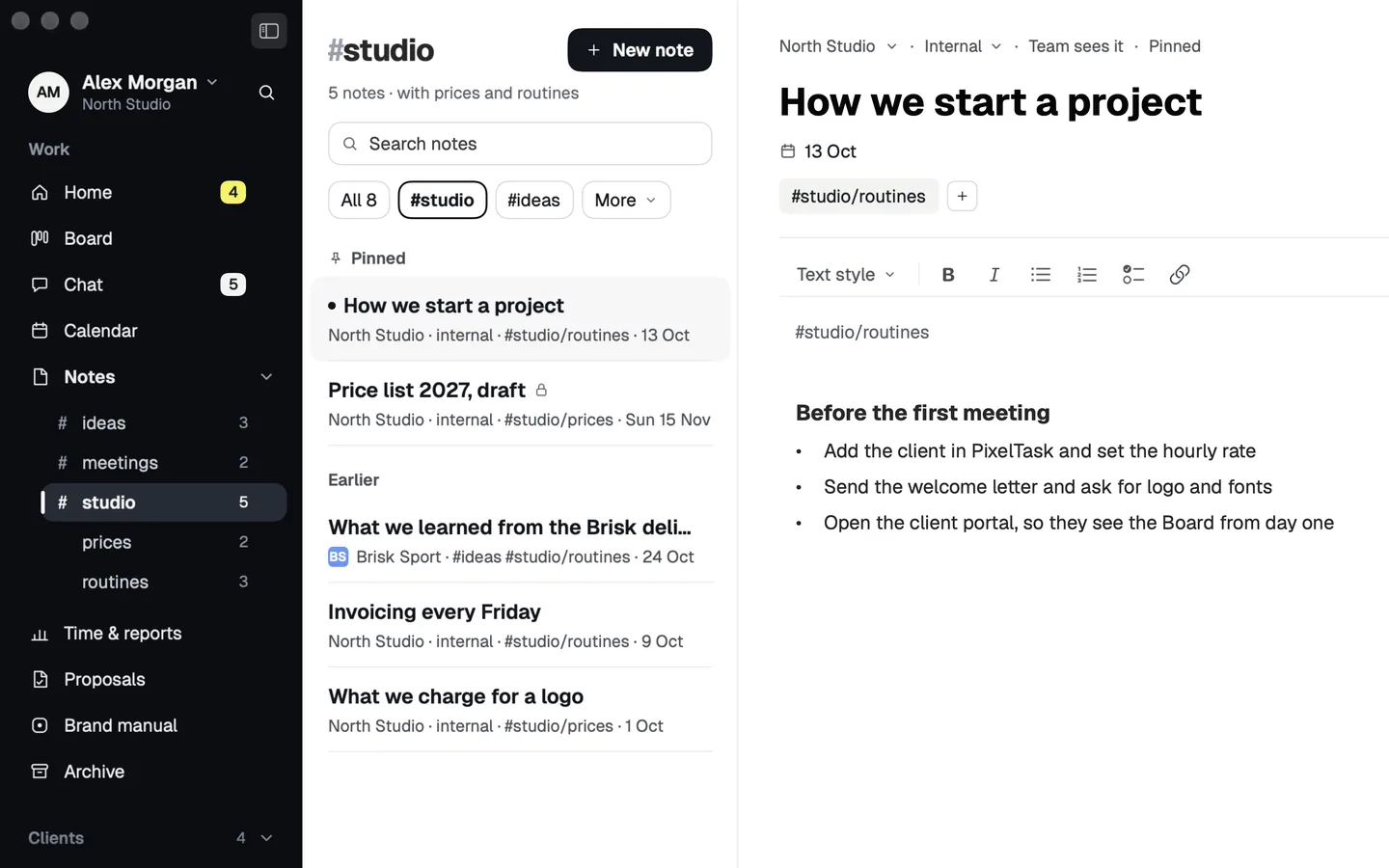
The top of each note says who sees it, «Team sees it» or «Only me», and you switch with one click.
Partners see notes on the clients you have shared with them. They never see internal notes or anyone else's «Only me» notes. People with chat-only access see no notes at all.
Your client doesn't see your notes. They are working notes for you and your team, and nothing here ends up on the client portal.
The rules are enforced on the server. Whatever is hidden from someone is never sent to them, neither to their Mac nor to their phone. So you can be frank in an internal note about prices or plans.
How does a note turn into tasks on the board?
Write a checklist in the note and press «Make card» on the line that needs doing. The line becomes a card on the client's board.
The side panel «From this note» shows the cards the note has made. Lines that aren't cards yet are listed under «Can become cards». The cards show up there at once, and the link holds as you keep writing. When you tick the line in the note, the card is marked done.
This works well after a meeting. You write the notes while you talk, and turn what you promised into cards before you close the note. They are ordinary cards, so the timer and the hours work on them like on any other card.
Paste a to-do list from Notion and each line becomes a real checkbox that can turn into a card. On your phone you can turn a checklist line into a card as well.