Time tracking for freelancers, right on the task.
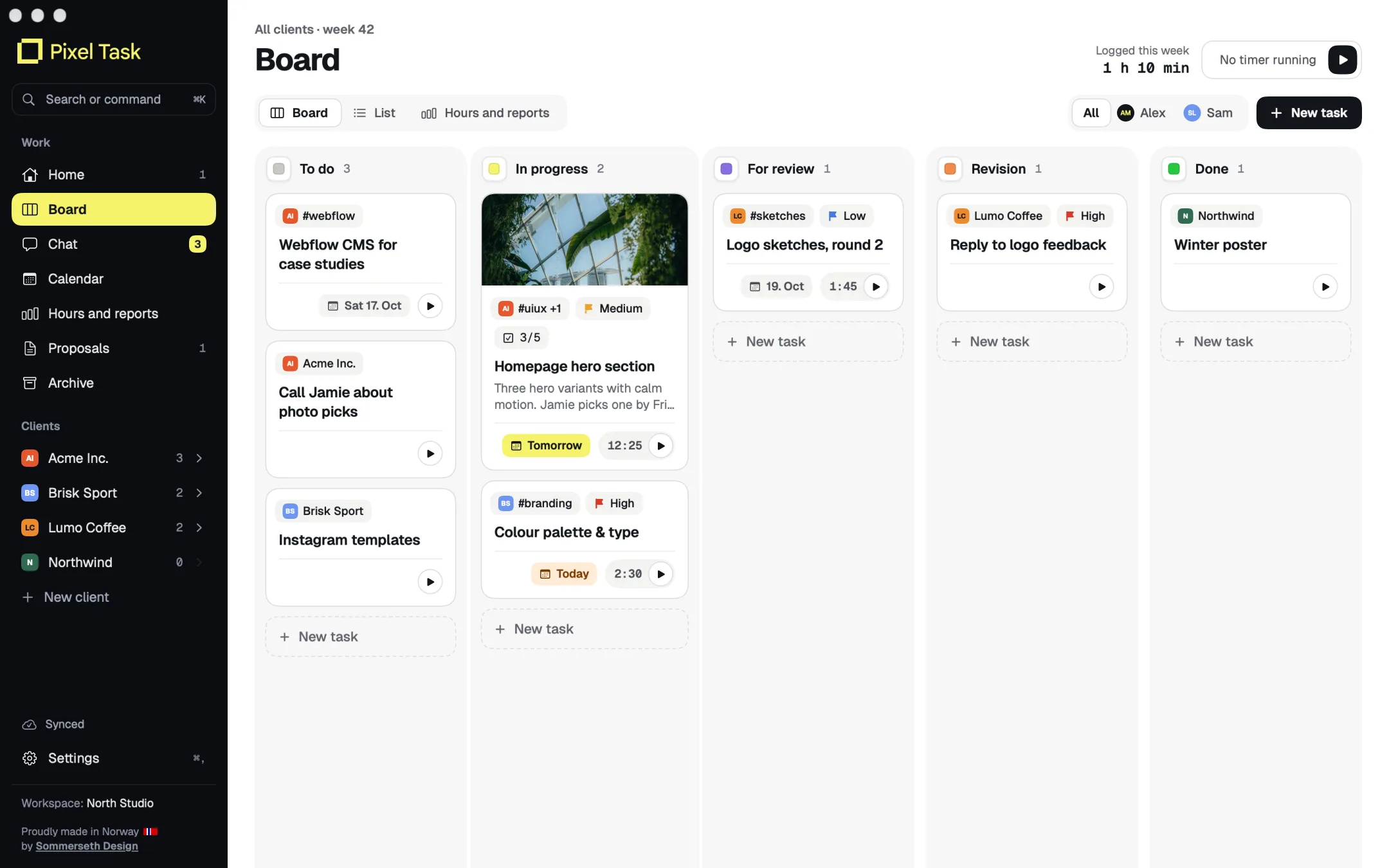
Time tracking in PixelTask is a timer that sits on the card you are working on. It is made for freelancers and small agencies who want to know where the time goes, without timesheets to fill in later. Move a card to In progress and the timer starts. Hours land on the right client and project, ready to invoice.
- Start
- Card to In progress
- Shortcut
- ⌃⌥T on the Mac
- Export
- PDF and CSV
- Import
- Harvest, Toggl, Klokki
How do I track time in PixelTask?
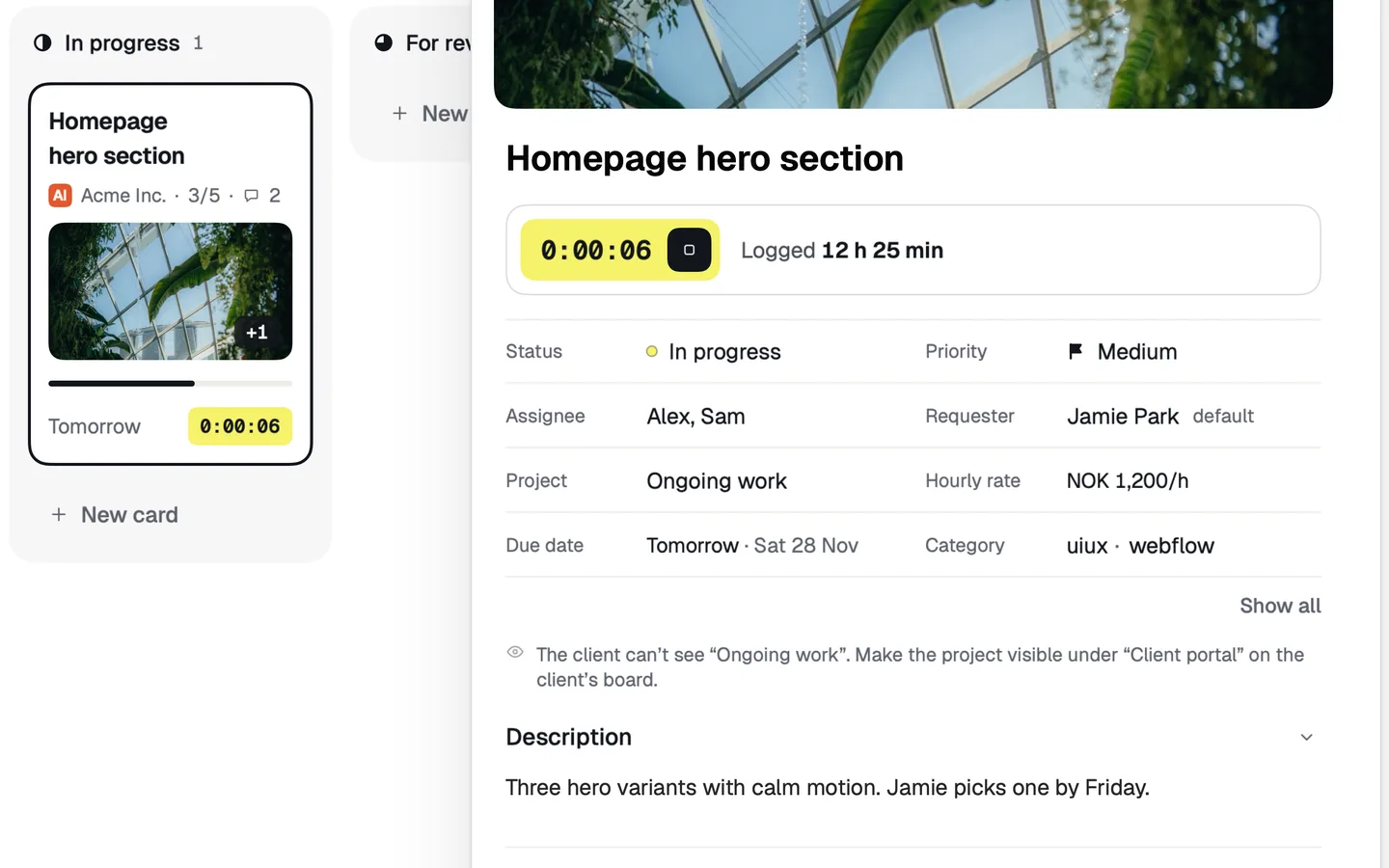
You track time right on the card you are working on. Move the card to In progress on the Board and the timer starts by itself. You can also press play on the card, or ⌃⌥T anywhere on your Mac. If you would rather start it yourself, turn the automatic start off in Settings.
While the timer runs, a yellow ring draws around the card and the clock sits in the menu bar. You stop it there too. If the ticking seconds stress you, switch them off. Only one timer runs at a time, so starting a new one stops the last.
Forgot to start? Use Add time and type 1.5, 1:30 or 90m on any date. If you walked away from the Mac with the timer running, PixelTask asks when you are back.
When work arrives as a message, copy the text and press ⌃⌥N. Quick card makes a card with the client and project suggested, ready for the timer.
Can I start and stop the timer from my iPhone and Apple Watch?
Yes. It is the same timer on Mac, iPhone, iPad, Android and Apple Watch. Start it in one place and stop it in another.
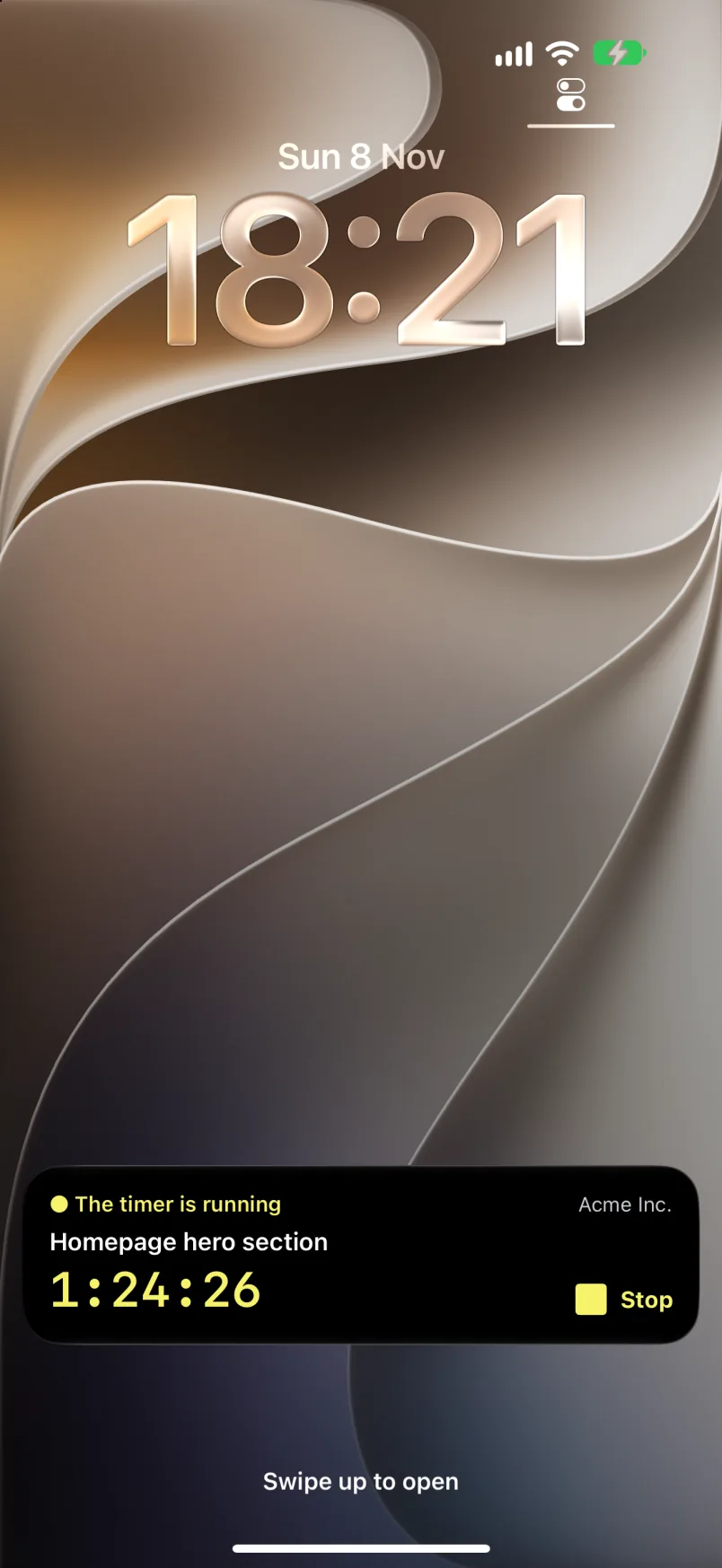
On iPhone the timer sits on the lock screen and in the Dynamic Island while it runs, even when you started it on the Mac or the watch. You stop it right from the lock screen.
On Apple Watch the time fills the screen, with the card title above and a clear Stop button below. When no timer is running, the watch shows the cards you last tracked time on, and one tap starts one of them.
Losing the connection never means losing time. The Mac saves everything locally first and syncs when you are back online. If the Mac started a timer offline while your phone started another, PixelTask keeps track of both and never counts time twice.
How do my hours become an invoice?
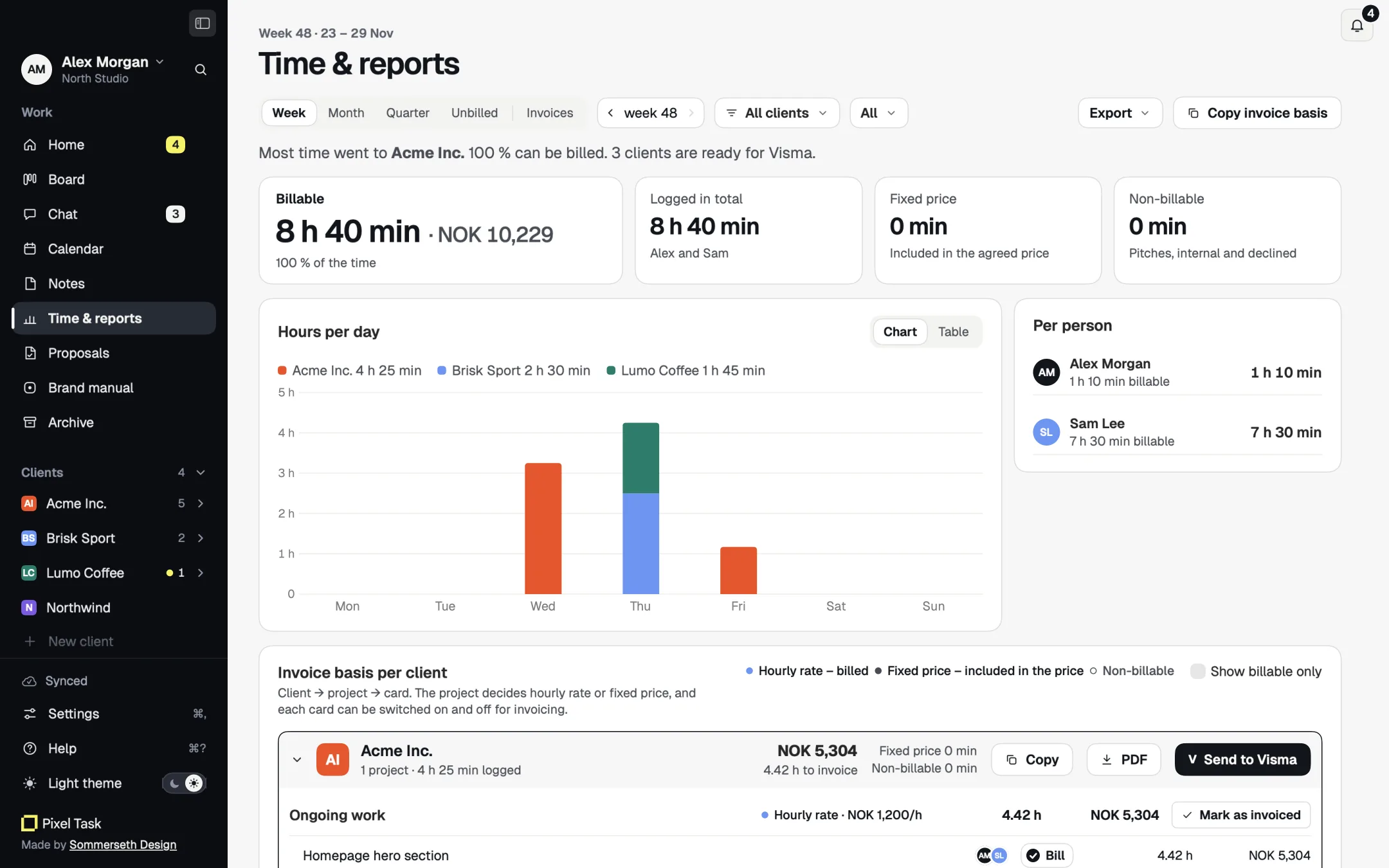
Your hours gather in Time & reports, per client, project and person. Pick a week, month, quarter or Unbilled. Unbilled shows everything not yet invoiced, back to the client's oldest hour.
From there you make a timesheet PDF, copy the invoice basis as text, or export a CSV for Excel and Numbers. Amounts are in the client's currency. Hours are counted to two decimals per day, card and person, so the report, the PDF and the invoice give the same total, to the cent. The owner can round each card's hours up on the invoice, to the quarter, half or whole hour.
Invoicing in another program? Choose Mark as invoiced. The hours get a date and are locked, and the card stays on the Board. Next time only the new hours come along. With Visma eAccounting you send the hours as an invoice draft.
An employee can be set to see only their own hours and no amounts. What is hidden is closed on the server.
Can I bring my hours from Harvest, Toggl or Klokki?
Yes. Export your hours as a CSV from the old tool and drop the file on Import in Time & reports. PixelTask recognises files from Klokki, Harvest, Toggl, Timely and Notion, and takes other CSV files too.
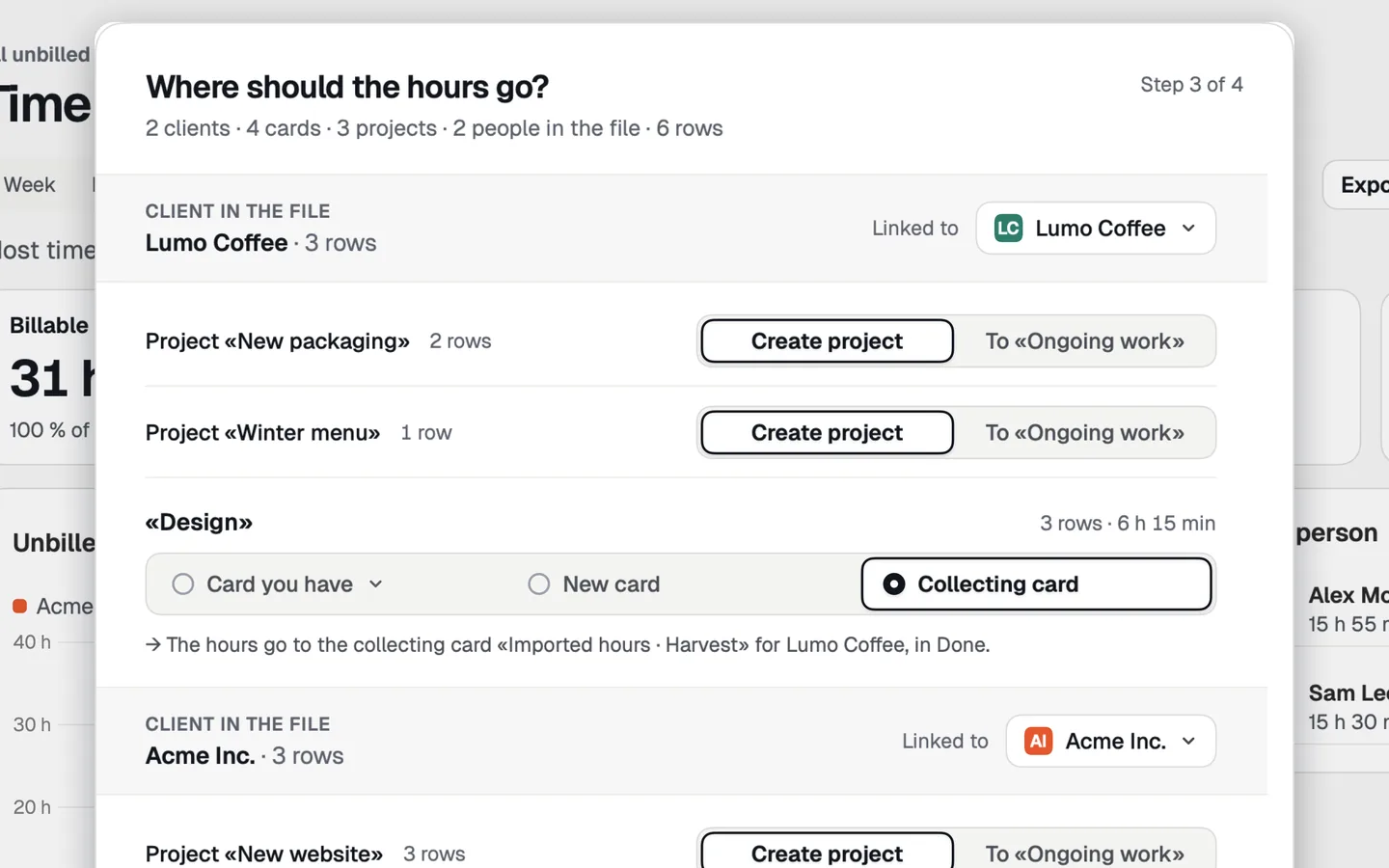
The import has four steps. PixelTask matches clients and projects and only asks about what it is unsure of. For each task in the file you pick a card you already have, a new card or a collecting card.
If you already logged some of the same hours in PixelTask, they are recognised. Identical rows are skipped, and where something only looks similar, you decide which one counts. Importing the same file twice adds nothing.
Changed your mind? Undo the import for 30 days under Earlier imports. That also removes the collecting cards, and any clients and projects the import made, if they are empty.