Proposals clients accept online, then become projects.
Proposals in PixelTask are proposals you write in the Mac app and send to the client as a link. You build them with sections, your team and an estimate, line by line. The client reads it online, picks any extras and accepts with a code from their e-mail. Once it's a yes, the estimate becomes cards on the client's board.
- Written in
- The Mac app
- Client accepts
- With an e-mail code
- After a yes
- Cards on the board
- Client portal
- Norwegian or English
How do I make a proposal in PixelTask?
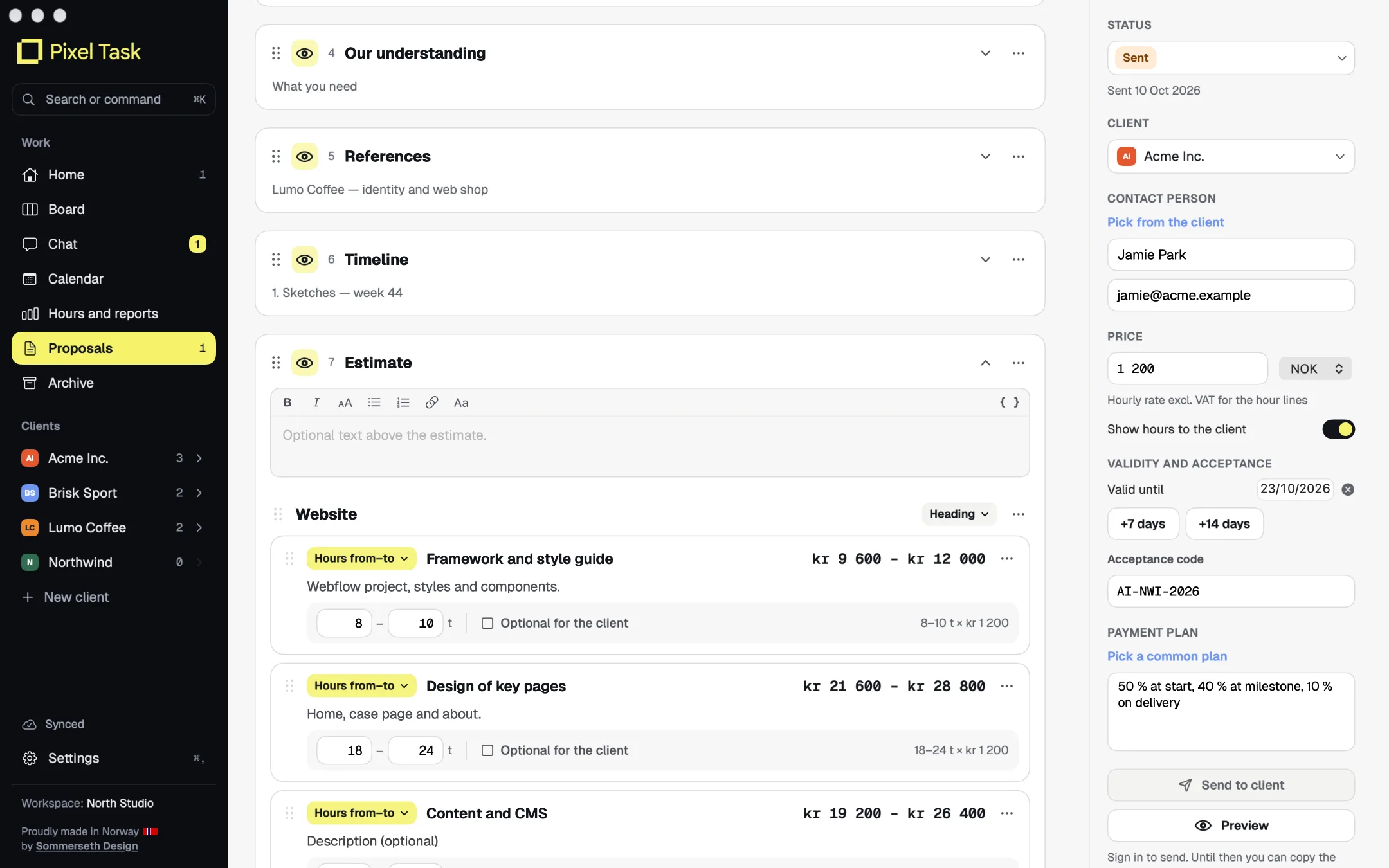
Start from a template in «New proposal» and fill in the sections. The built-in ones include «Known client», «New client» and «Simple proposal», and you can save your own. The client is optional, so you can also write to someone who isn't a client yet.
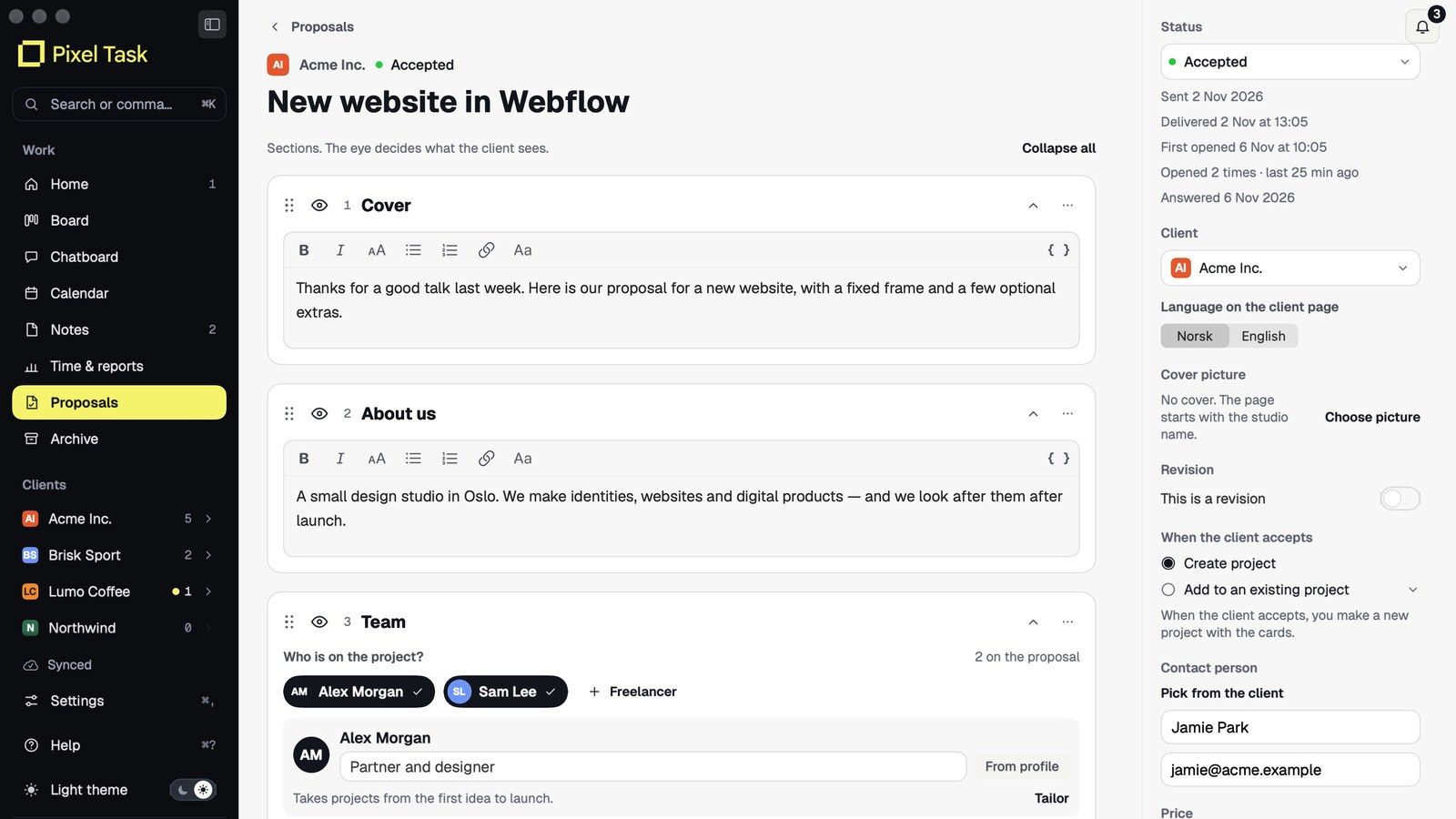
Each section can be shown or hidden for this proposal only. The text has headings, lists and links, and if you paste from Notion, Google Docs or Word, the structure stays. The Team section pulls title and bio from each profile, freelancers you work with included.
You build the estimate line by line: fixed price, hours, a range, quantity × price, or recurring costs. Any line can be optional for the client. You decide whether the client sees the hours or only the amounts, and whether VAT and the total are shown.
«Preview» shows the exact page the client gets, on desktop and mobile. Nothing is sent until you press Send.
How does the client accept the proposal?
The client gets an e-mail with a link to the proposal on pixeltask.app. They need no account and no app. On the page they read the sections, tick the extras they want, and see the amount they are accepting right in the accept box.
To accept, the client types their e-mail address and confirms a code sent there. You get an e-mail when the proposal is accepted, and the status changes in the app. If a colleague at the client should accept, the client can send it on from the page. If the timing is wrong, they can answer «Not now» with a reason.
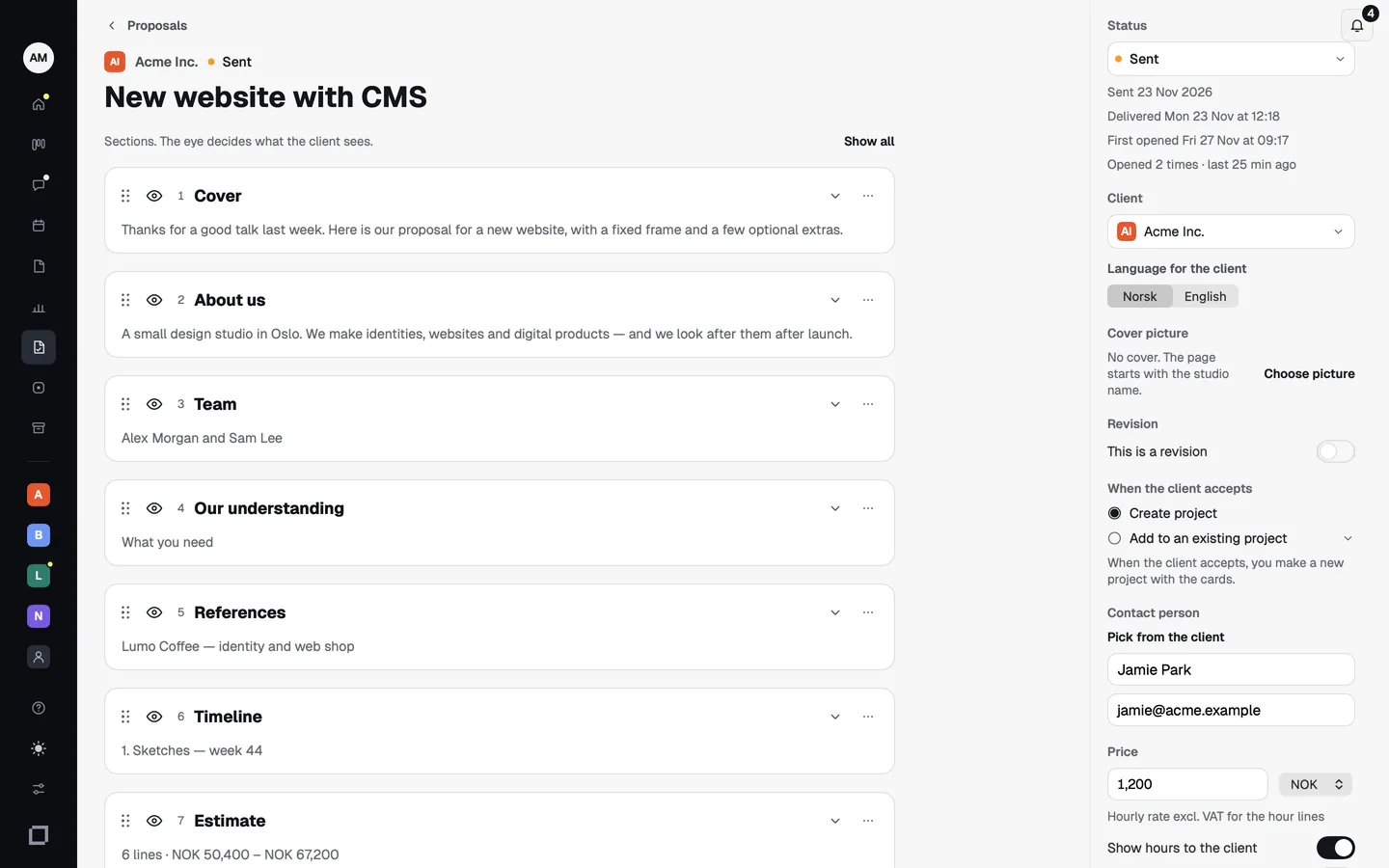
The proposal list shows whether the e-mail was delivered and whether the link was opened. There's no tracking pixel in the e-mail. Home shows the proposals waiting for an answer. Once one has waited three days, you can press «Remind» in the bell. An expired proposal can't be accepted until you extend it.
What happens when the client says yes?
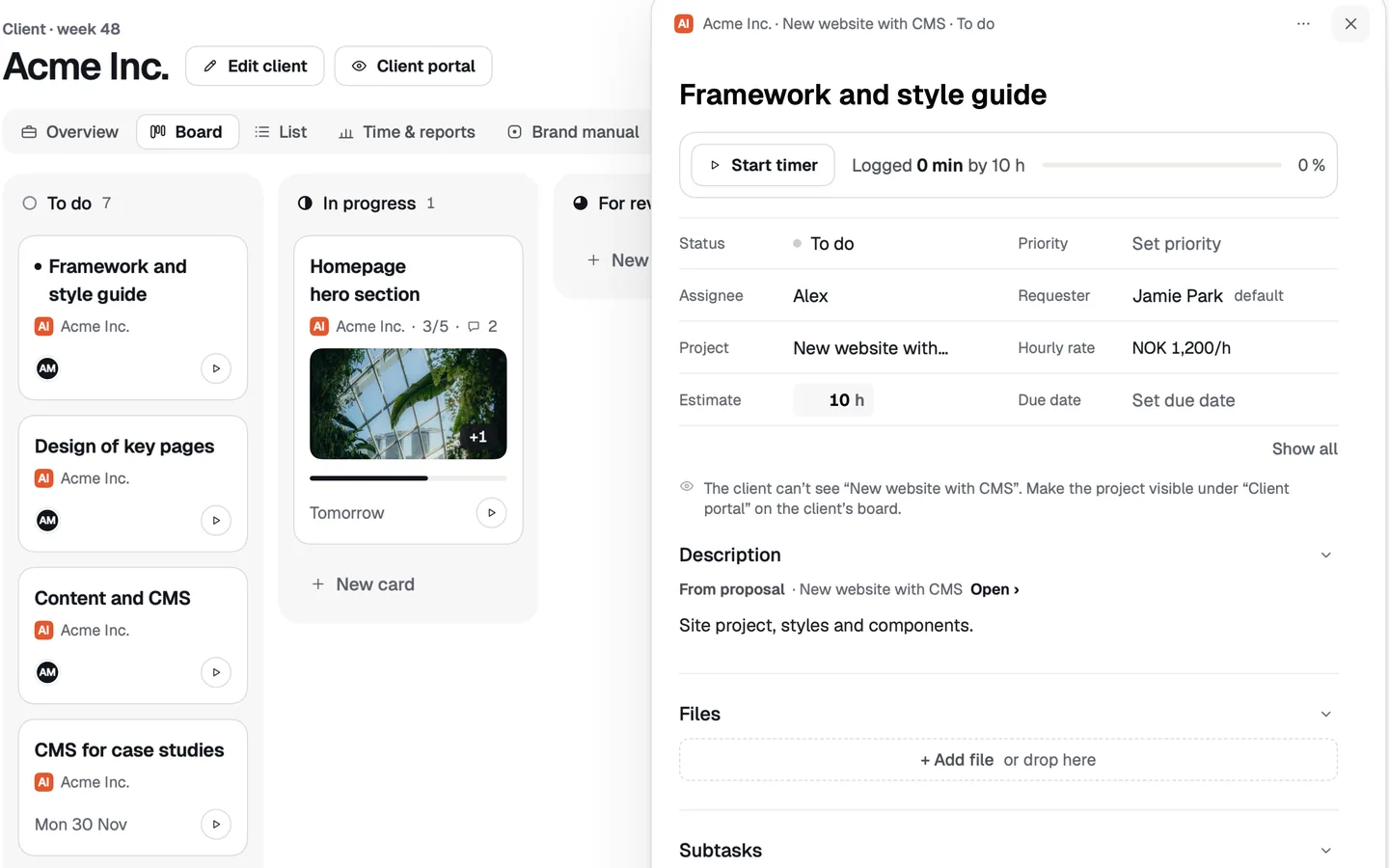
One click turns the accepted proposal into a project. The lines the client said yes to become cards in the first column of the client's board, with the hours from the estimate. The project gets the hourly rate and estimate, or a fixed price when every line is fixed. If the recipient wasn't a client yet, the client is created at the same time.
If the work is already under way, choose «Link to existing» before the client accepts. New and changed lines then become cards on the project you already have. A line can also point to a card you already have. That card gets the proposal text at the bottom and a new estimate, and nothing else on it changes.
The card shows «From proposal» with a link back, so you see what was promised while you track time. Need an agreement as well? Make it from the proposal. The price comes along, and the proposal becomes attachment 1.
How do I send a revised proposal?
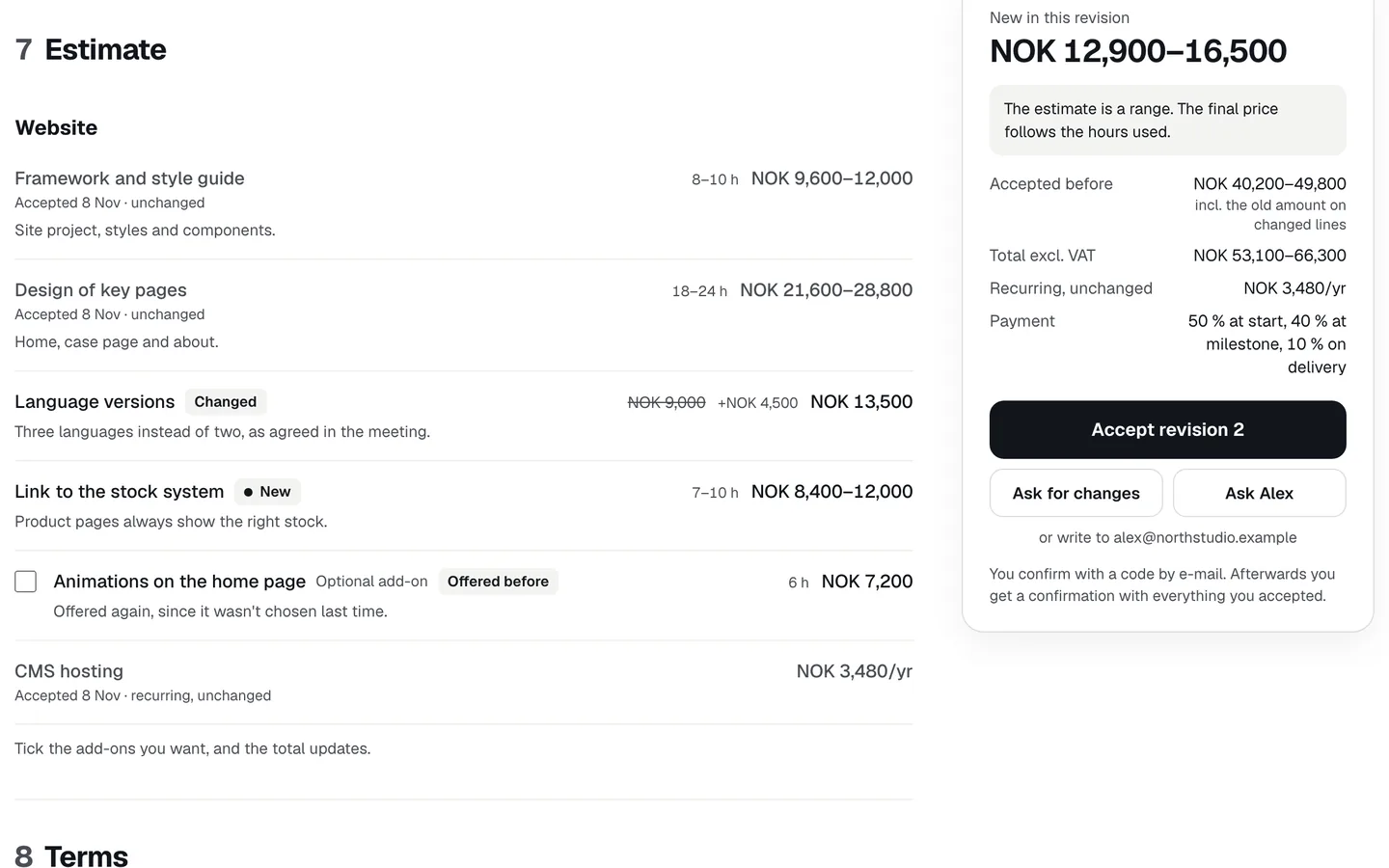
Right-click an accepted proposal in the list and choose «Create revision». Every line is then marked «Approved earlier», and what you add is marked «New». Change a line and it's marked «Changed», with the old amount shown. An extra the client didn't pick last time is marked «Offered before».
The client sees a calm box at the top that says what's new and changed, and can choose «Show only what's new». The sum keeps the new apart from what was approved earlier. The client accepts only the revision, with one code.
If the earlier proposal was approved in Notion or by e-mail, switch on «This is a revision» and mark the lines yourself. The revision keeps the proposal number with -R2, -R3 and so on, and «Builds on» shows what it builds on. The client doesn't have to reread everything to find what changed.